TABLE OF CONTENTS
I. Accessing the Remote Contractor (RC) Profile Verification
A. Adding Personal Information
B. Adding Government IDs
C. Adding Address & Contact
D. Adding Bank Information
E. Adding Emergency Contact
F. Adding Work Setup Details
II. Submitting changes in the Remote Contractor (RC) Profile Verification
I. Accessing the Remote Contractor (RC) Profile Verification
Navigate to the Staff Portal: https://staff.remotestaff.com/
Input Email and Password, then click the SIGN IN button
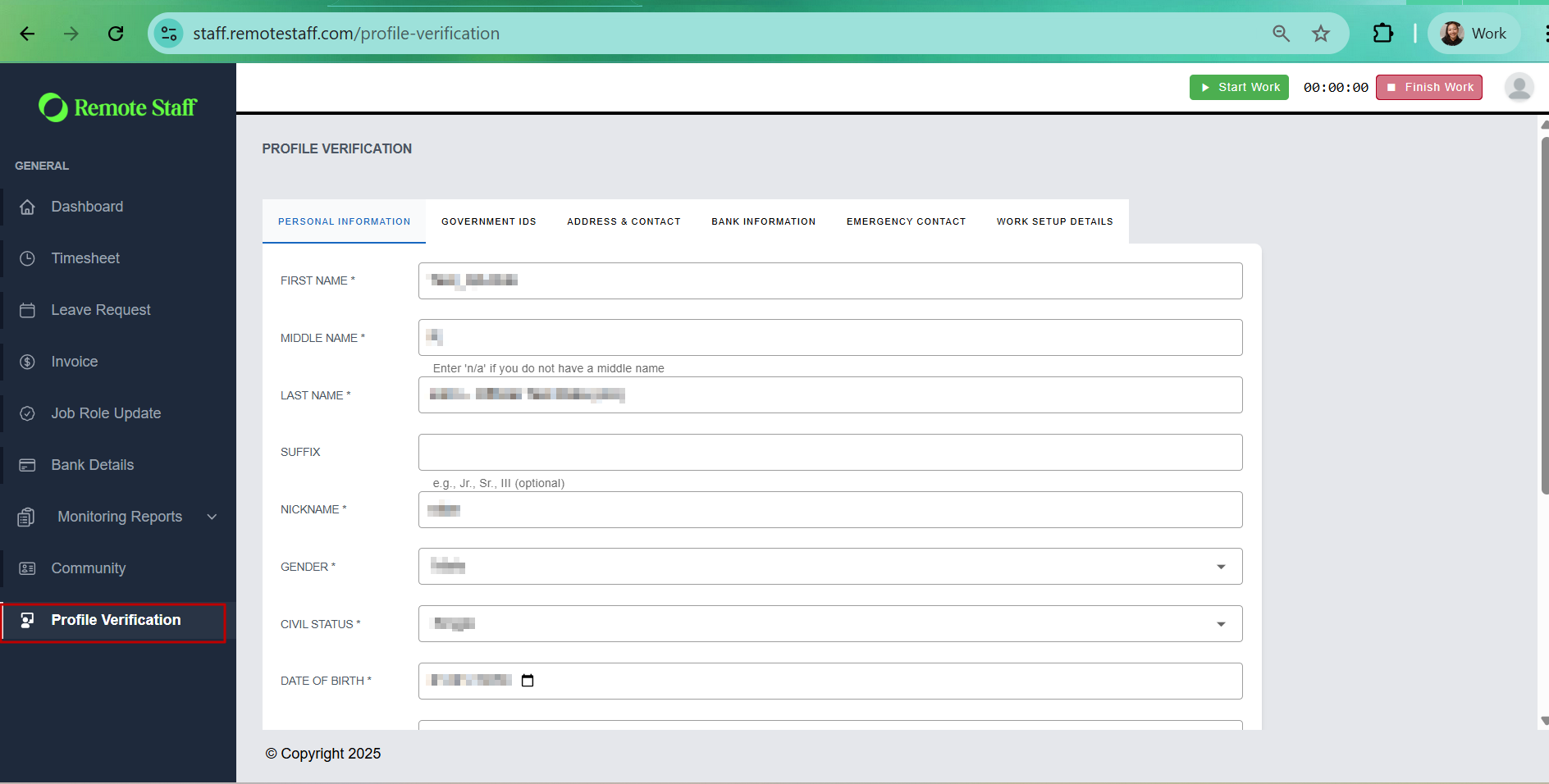
From the Main Menu, click PROFILE VERIFICATION menu
A. Adding Personal Information
From PROFILE VERIFICATION men
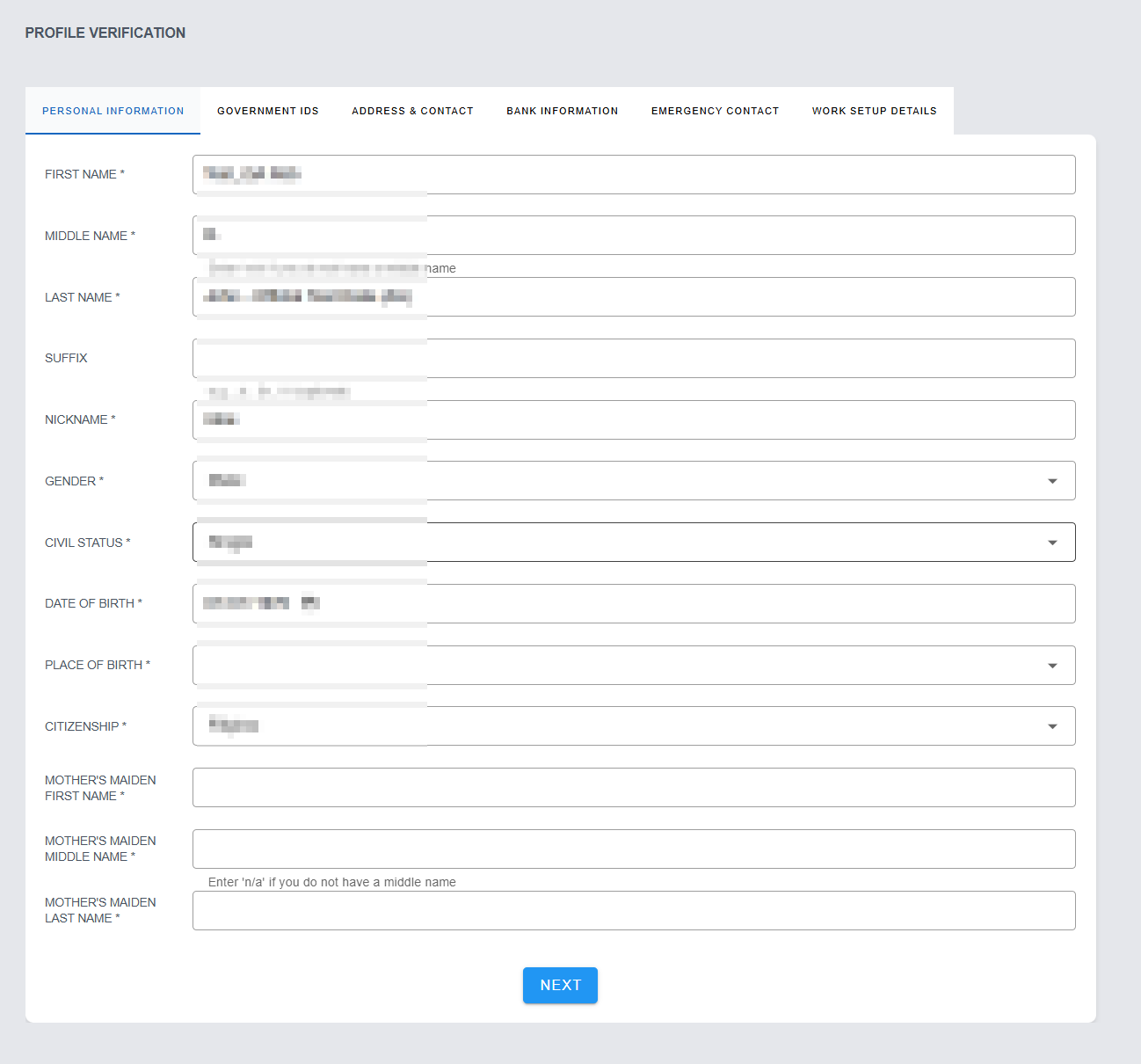
Supply all the Personal Information
Once done, click the NEXT button
NOTE: All fields with asterisks (*) are required fields
B. Adding Government IDs
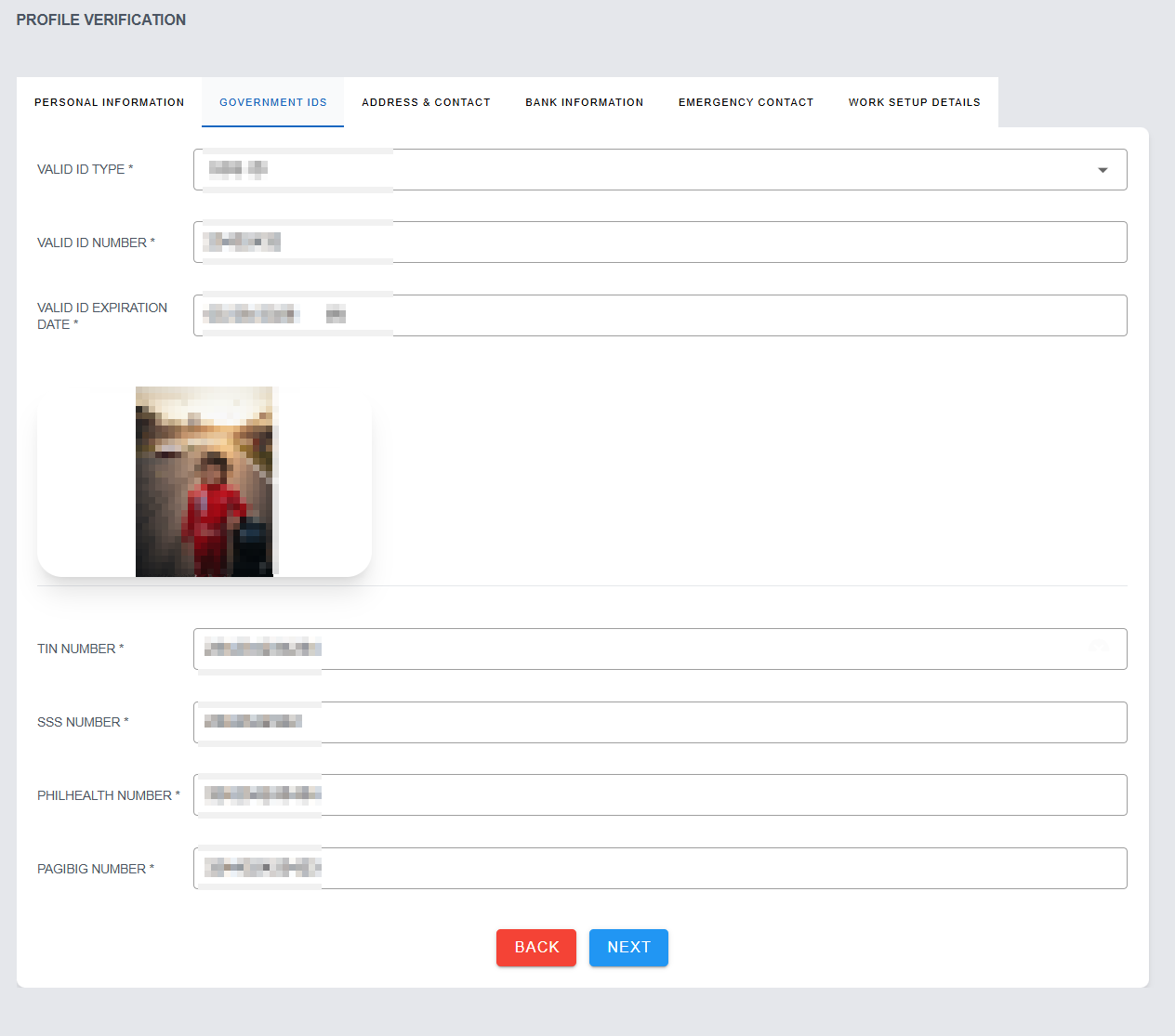
From Personal Information tab, click the NEXT button
Supply all the necessary information in the Government IDs tab
NOTE: All fields with asterisks (*) are required fields
C. Adding Address & Contact
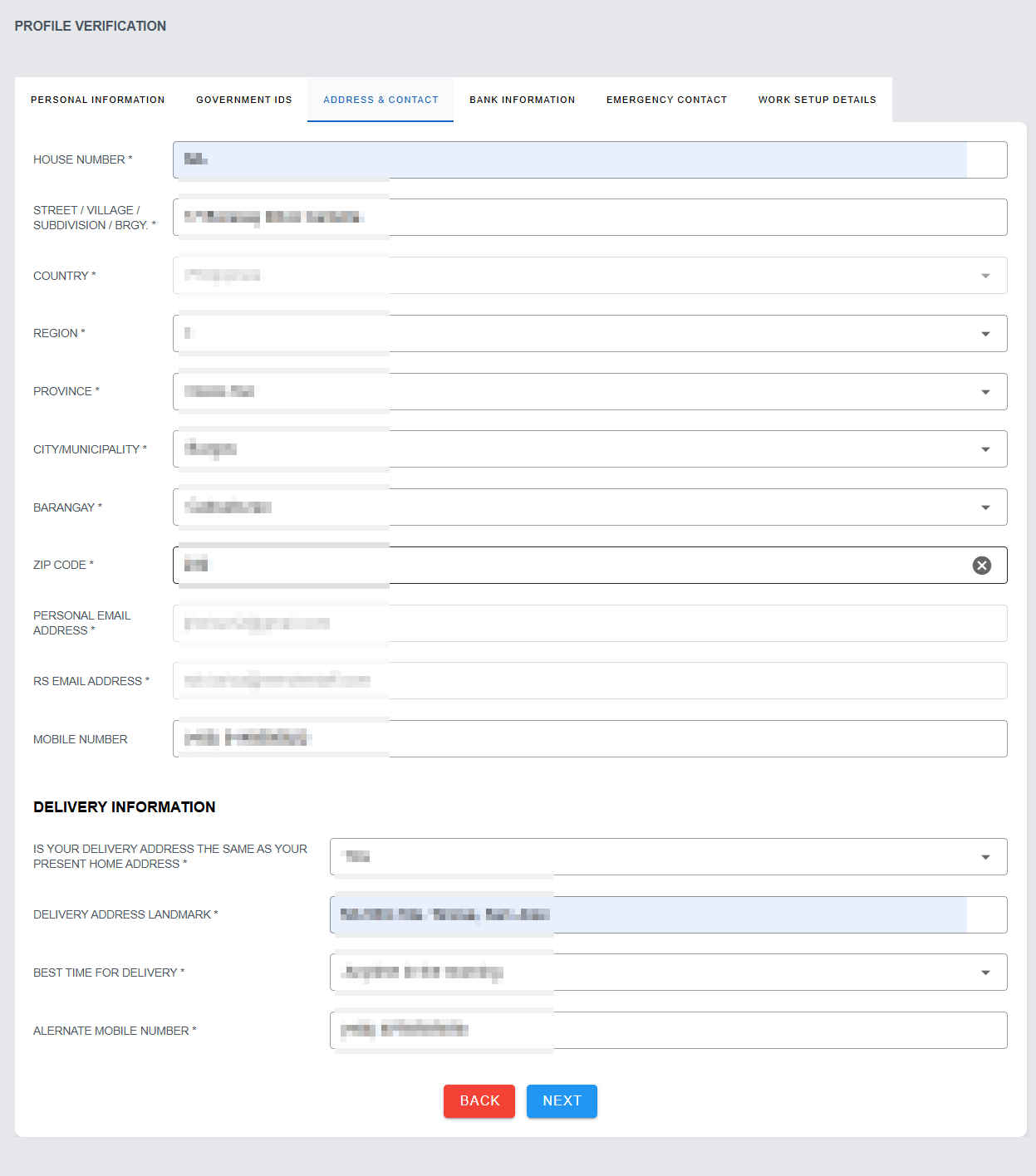
From the Government IDS tab, click the NEXT button
Supply all the necessary information in the Address & Contact tab
NOTE: All fields with asterisks (*) are required fields
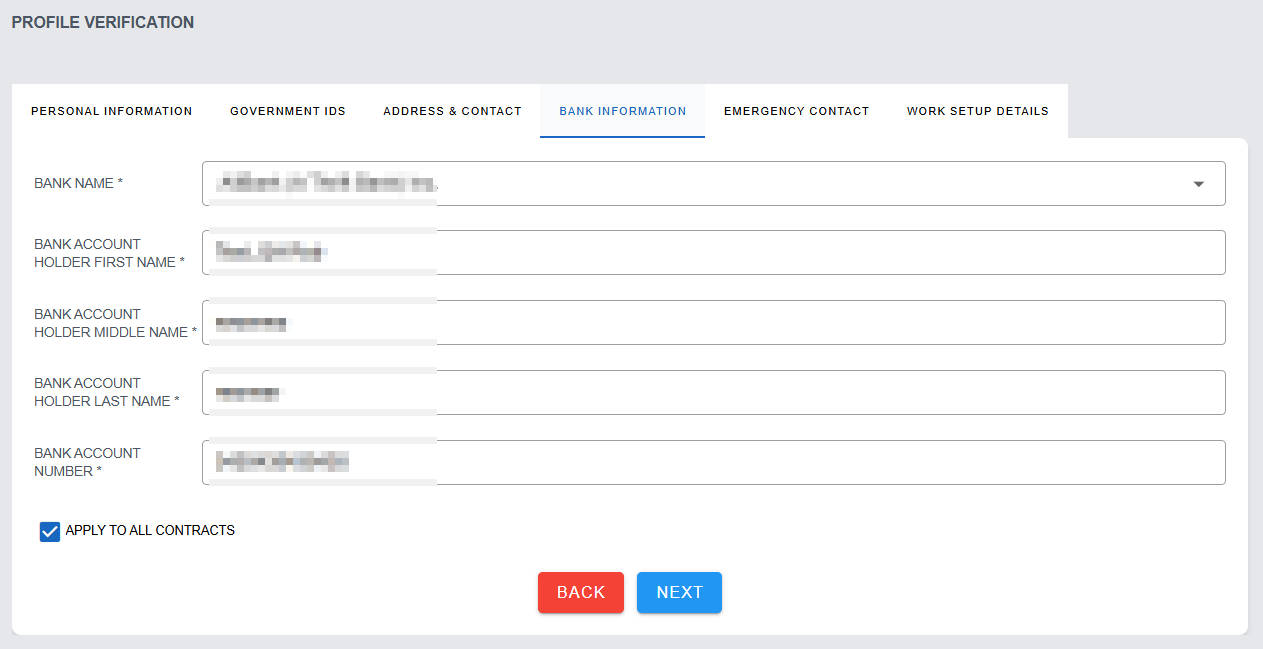
D. Adding Bank Information
From the Address & Contact tab, click the NEXT button
Supply all the necessary information in the Bank Information tab
NOTE/S:
All fields with asterisks (*) are required fields
By checking 'APPLY TO ALL CONTRACTS' check box, will automatically apply this to all contracts under the RC
The updating of bank information is locked during this period:
for midmonth: from 14 to 20
for end of the month (if 30th/31th is the cutoff : 28 to 5
E. Adding Emergency Contact
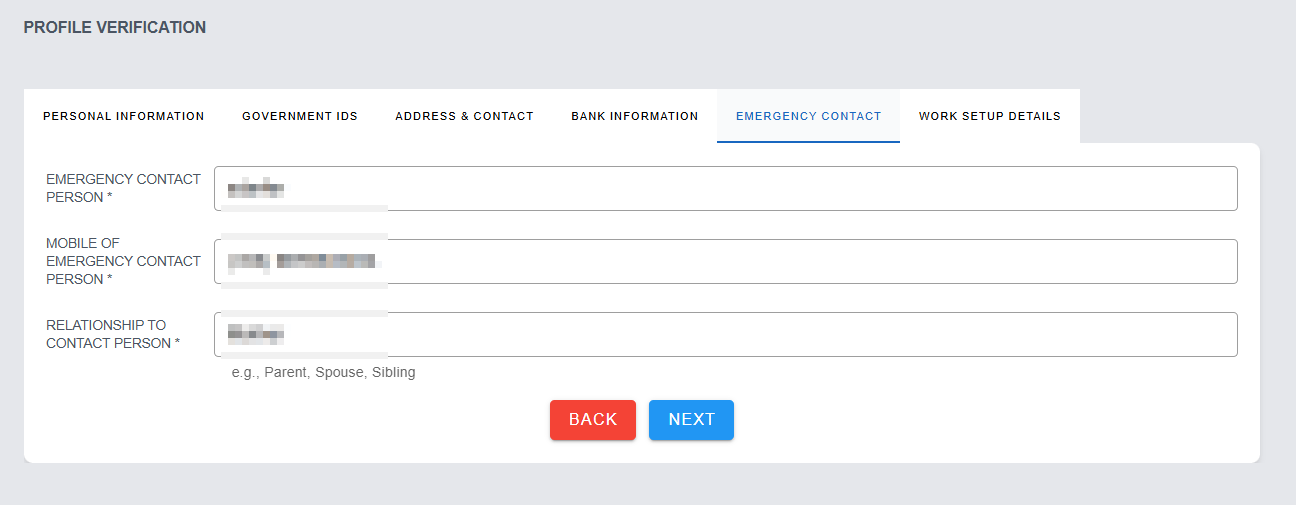
From the Bank Information tab, click the NEXT button
Supply all the necessary information in the Emergency Contact tab
NOTE: All fields with asterisks (*) are required fields
F. Adding Work Setup Details
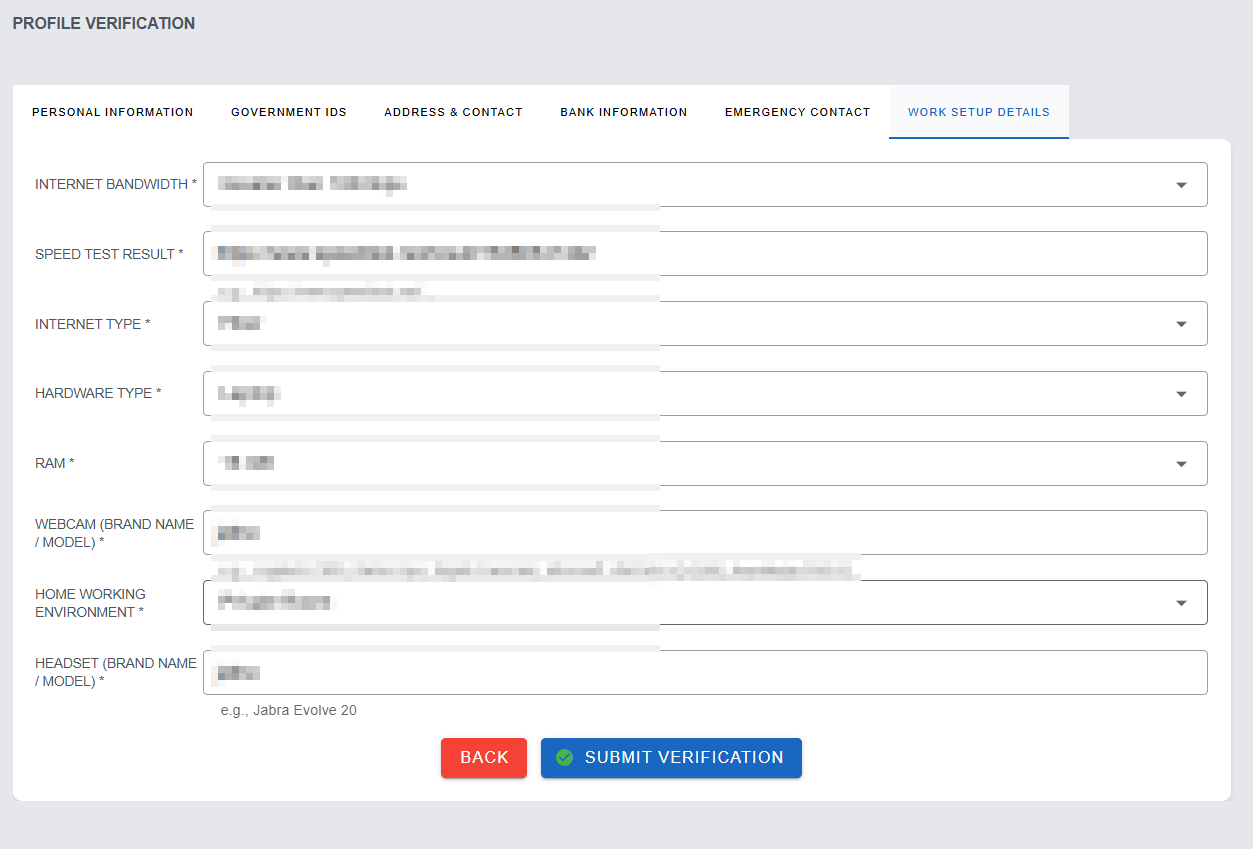
From the Emergency Contact tab, click the NEXT button
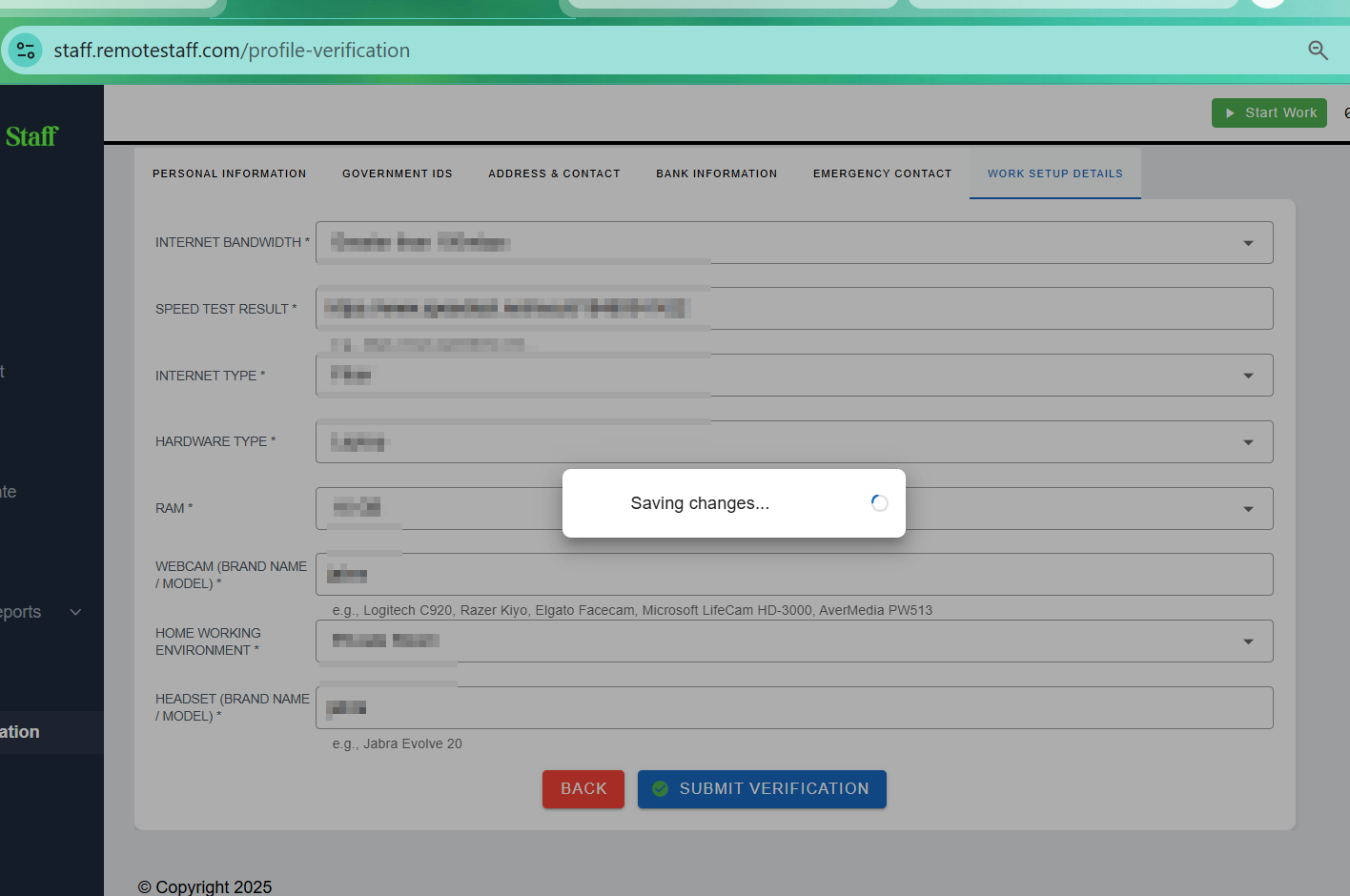
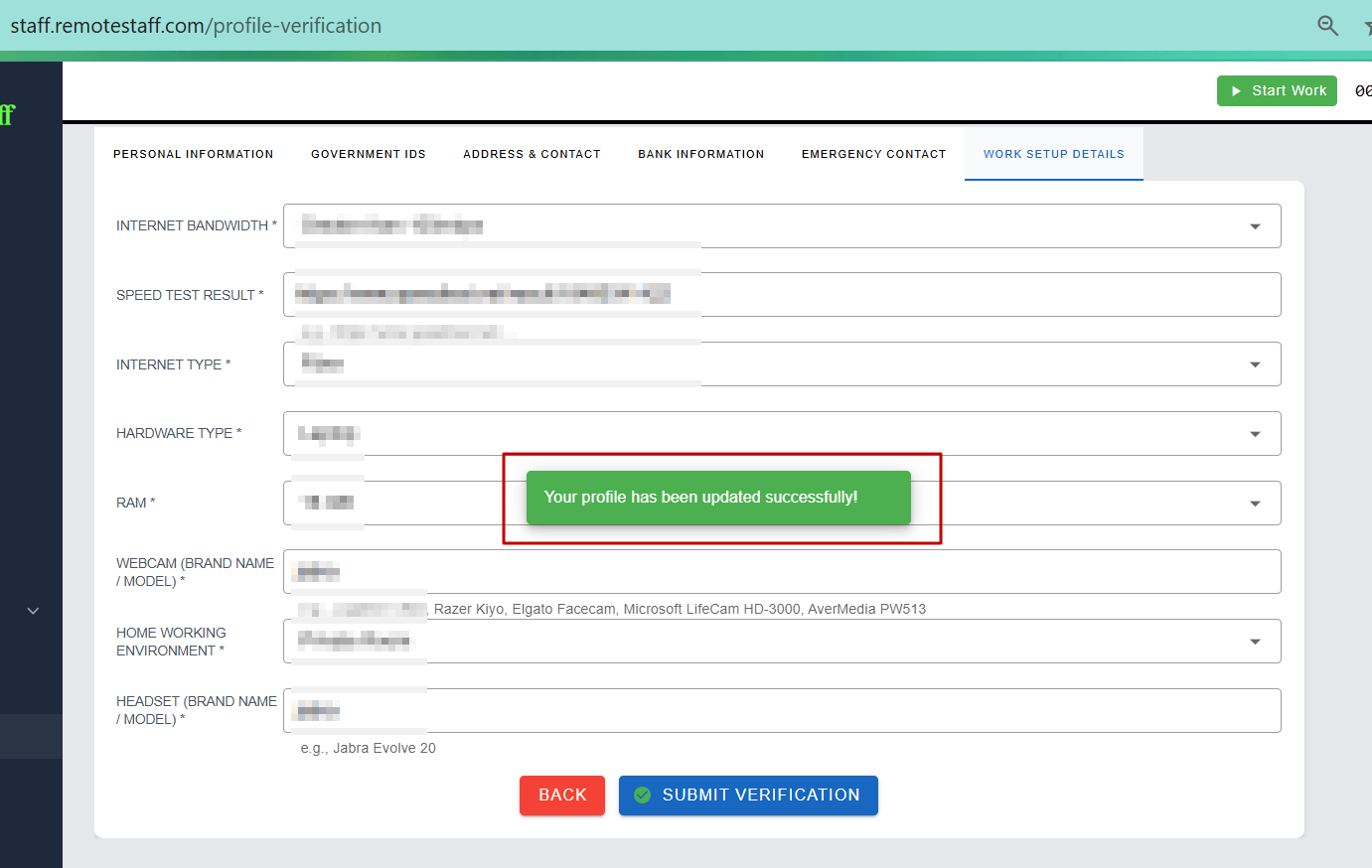
Supply all the necessary information in the Work Setup Details tab
NOTE: All fields with asterisks (*) are required fields
II. Submitting changes in the Remote Contractor (RC) Profile Verification
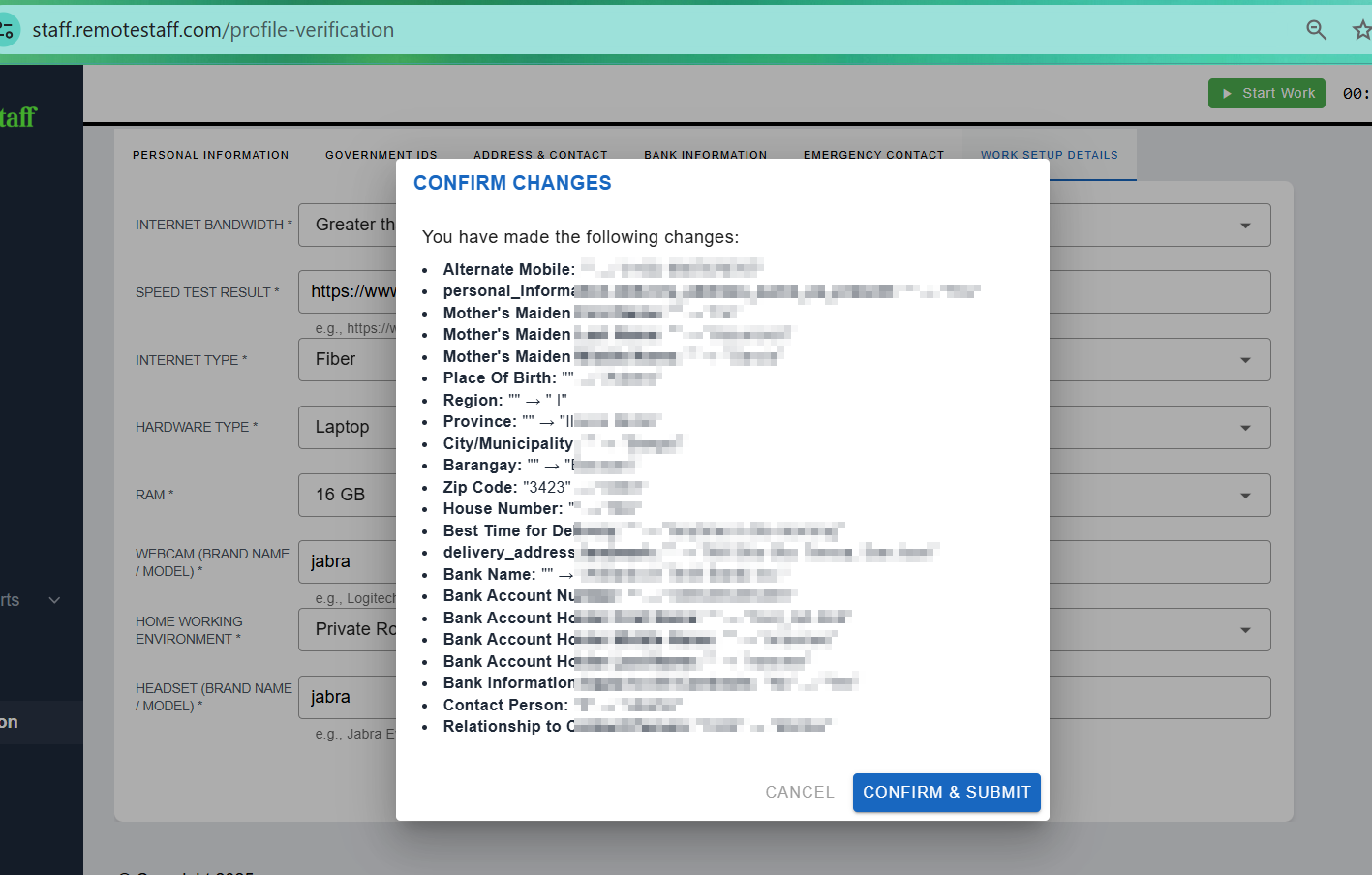
Once done supplying all the information, click the SUBMIT VERICATION button
Re-check all the changes from the Confirm Changes pop-up window
Once done checking, click the CONFIRM & SUBMIT button
Was this article helpful?
That’s Great!
Thank you for your feedback
Sorry! We couldn't be helpful
Thank you for your feedback
Feedback sent
We appreciate your effort and will try to fix the article